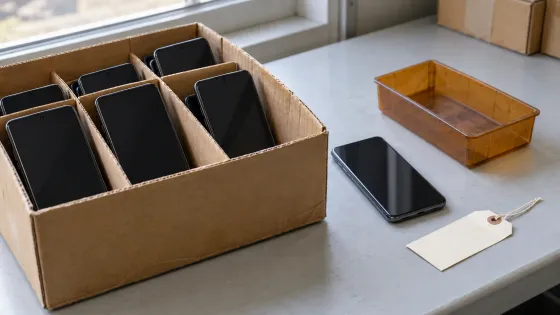
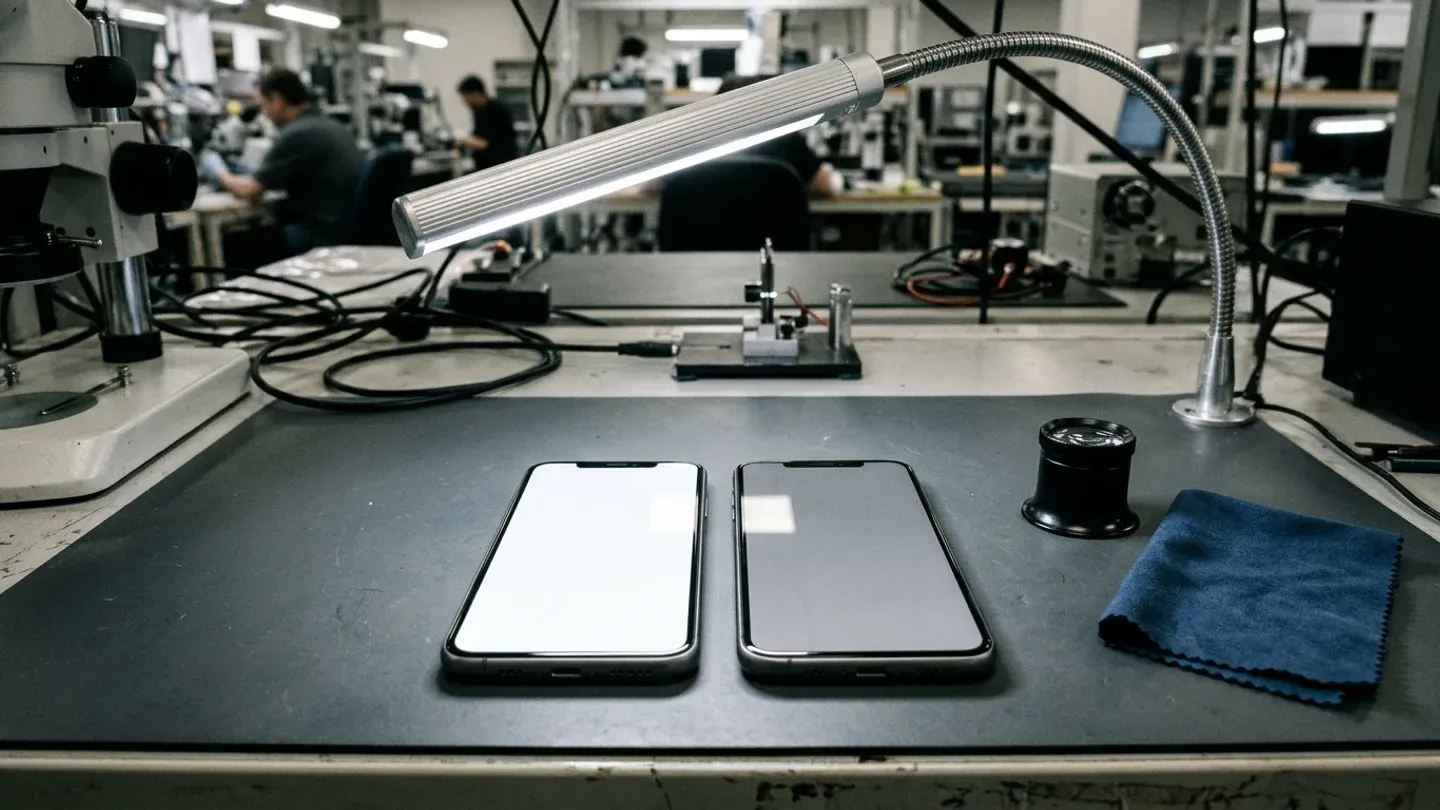
Wholesale used-phone buyers who grade screen condition on colorful default wallpapers risk costly lot disputes and customer returns when hidden OLED shadow appears after resale. Separating external cover-glass wear from internal panel aging on uniform test backgrounds prevents wrong grade assignments and protects resale margins across used phones and cosmetic vs functional grading workflows. On Apple iPhones, the Super Retina display is in iPhone X, iPhone XS, and iPhone XS Max, and the Super Retina XDR display is in iPhone 11 Pro models and later, excluding iPhone SE (2nd and 3rd generation). Apple’s Super Retina and Super Retina XDR displays use organic light-emitting diode (OLED) technology.
How Do OLED and LCD Displays Differ in Used Phone Lots?
When mixed handsets arrive at an intake bench, sort oled vs lcd models into separate inspection queues before starting screen checks. With no backlight, an Apple OLED display emits light through each pixel, allowing for a thinner display. In DisplayMate’s analysis, every single sub-pixel in an OLED display is independently directly electrically powered to emit light, so only the active image sub-pixels draw power based on their individual brightness levels. In DisplayMate’s comparison, for OLEDs, Black pixels and sub-pixels do not use any power, whereas for LCDs the display power is fixed and independent of image content.
In DisplayMate’s optical microscope analysis of iPhone X Diamond Sub-Pixels, the Red, Green, and Blue sub-pixels have very different sizes: Blue is by far the largest because it has the lowest light emission efficiency, and Green is by far the smallest. In DisplayMate’s iPhone X comparison, currently OLED displays are more power efficient than LCDs for Average Picture Levels of 65 percent or less, and LCDs are more power efficient for Average Picture Levels above 65 percent. In DisplayMate’s viewing-angle measurements, while LCDs typically experience a 55 percent or greater decrease in Brightness at a 30 degree Viewing Angle, the OLED iPhone X display shows a much smaller 22 percent decrease in Brightness at 30 degrees. All displays, including OLEDs and LCDs, might be susceptible to reduced brightness levels as the display ages over time.
Published Apple OLED and LCD Reference Specifications
Apple Support’s technical specifications for representative OLED and LCD iPhone models state the following display parameters:
- iPhone 11 Pro uses a Super Retina XDR 5.8-inch (diagonal) all-screen OLED Multi-Touch display.
- That 5.8-inch OLED display has a 2436-by-1125-pixel resolution at 458 ppi and a 2,000,000:1 contrast ratio (typical).
- For that Super Retina XDR display, max brightness is 800 nits (typical) and 1200 nits (HDR).
- iPhone XS Max uses a Super Retina HD 6.5-inch (diagonal) all-screen OLED Multi-Touch display.
- On iPhone XS Max, the 6.5-inch OLED display has a 2688-by-1242-pixel resolution at 458 ppi and a 1,000,000:1 contrast ratio (typical).
- On iPhone XS Max, max brightness is 625 cd/m2 (typical).
- iPhone SE (2nd generation) uses a Retina HD 4.7-inch (diagonal) widescreen LCD Multi-Touch display with IPS technology.
- That 4.7-inch widescreen LCD display with IPS technology has a 1334-by-750-pixel resolution at 326 ppi and a 1400:1 contrast ratio (typical).
- For that Retina HD widescreen display, max brightness is 625 nits (typical).
How Do You Separate Temporary Image Persistence from Permanent OLED Burn-In?
During intake sorting, graders must separate normal OLED viewing behavior and temporary retention from permanent oled burn in. On an Apple OLED display, looking at the OLED display off-angle might show slight shifts in color and hue. On an Apple OLED display at reduced display brightness levels against black backgrounds, scrolling might show a slight blur or color change, which are characteristics of OLED and normal behavior. Record off-angle viewing checks separately from straight-on test screen checks on the intake sheet.
Before recording a screen deduction, check whether a faint remnant on the display is temporary image persistence or permanent burn-in. Extended long-term use of Apple OLED displays can include image persistence or burn-in, where the display shows a faint remnant of an image even after a new image appears on the screen. According to Apple Support, image persistence is temporary and disappears after a few minutes of normal use. On iPhone Super Retina and Super Retina XDR displays, burn-in can occur in more extreme cases such as when the same high-contrast image is continuously displayed at high brightness for prolonged periods of time. For Super Retina and Super Retina XDR displays, special algorithms monitor the usage of individual pixels to produce display calibration data, and the iPhone uses that data to automatically adjust the brightness levels for each pixel.
Cumulative Static Content, Brightness, and Sub-Pixel Degradation
Laboratory OLED burn-in test findings from RTINGS cover static content duration, display brightness, and sub-pixel color degradation:
- In RTINGS’s Real-Life OLED Burn-In Test report citing LG, the total duration of static content is expected to be cumulative, so static content present for 30 minutes twice a day is equivalent to one hour of static content.
- In RTINGS’s Real-Life OLED Burn-In Test on CNN TVs, the maximum brightness CNN TV (corresponding to a brightness of 380 nits on a checkerboard pattern) had more severe burn-in than the 200 nits brightness CNN TV.
- In RTINGS’s 20/7 Burn-In Test on its tested OLED TVs, regarding the colors of the static areas, the red sub-pixel was the fastest to degrade, followed by blue and then green.
How Do You Run an OLED Screen Burn-In Test on Incoming Wholesale Lots?
Before running an oled screen burn in test, reset the handset display controls so active color filters or ambient white-point settings do not distort the inspection. Follow a consistent bench sequence across wholesale phone grading lots.
Step-by-Step Display Reset Before Viewing Test Screens
- Check Auto-Brightness: On iPhone, Auto-Brightness is on by default and can be checked at Settings > Accessibility > Display & Text Size.
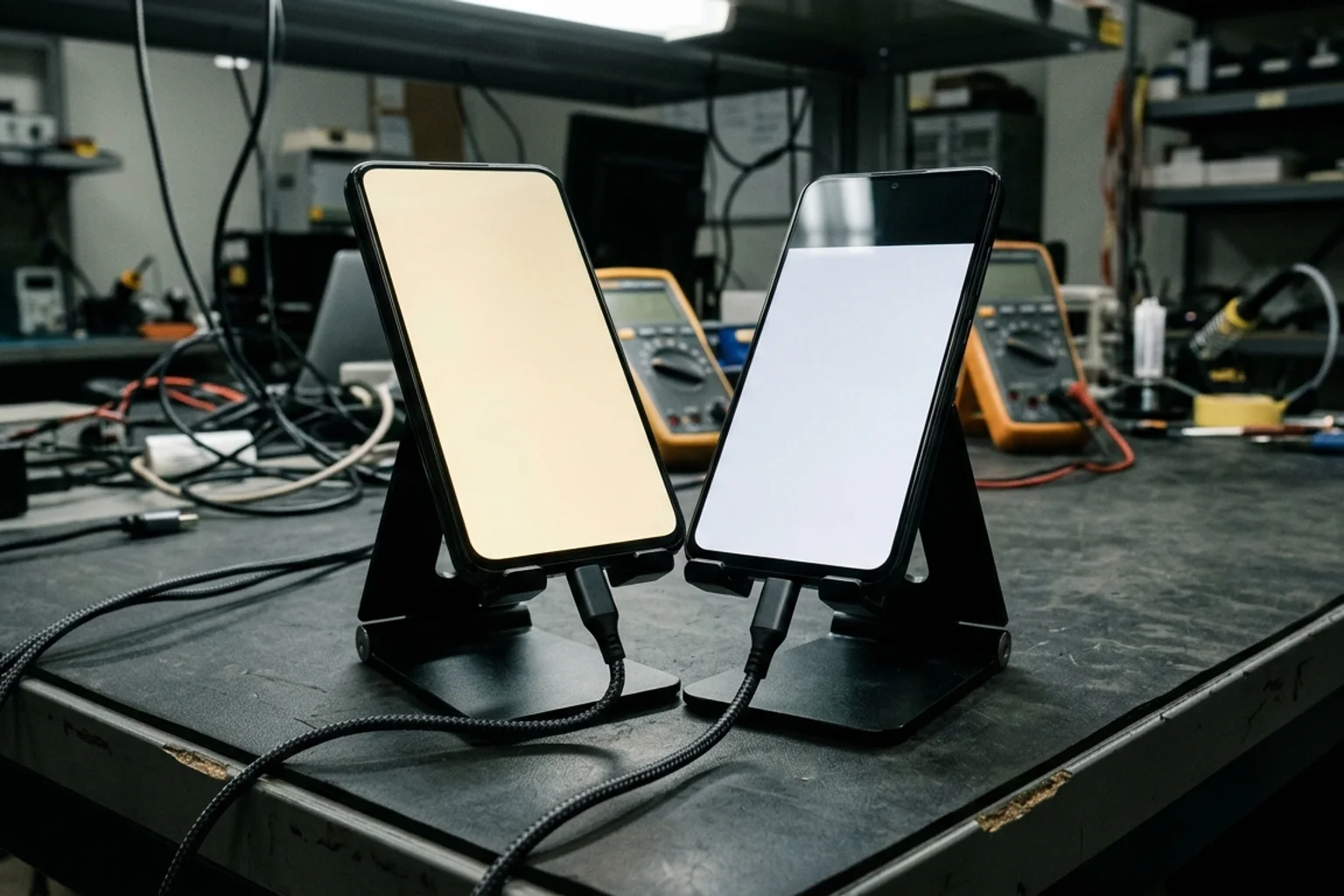
- Disable Night Shift: In DisplayMate’s iPhone X OLED display test, as the Night Shift slider setting is increased, the amount of Blue light emitted by the display decreases, and White and all screen colors take on an increasing yellowish tint. In DisplayMate’s iPhone X test, at the Night Shift Middle setting the measured White Color Temperature decreases to 4,200K, and at the Maximum setting it decreases to 2,800K, with the Blue Light component from the iPhone X reduced by 80 percent.
- Disable True Tone: In DisplayMate’s iPhone X analysis, True Tone viewing mode automatically changes the White Point and color balance of the display based on real-time measurements of the ambient light falling on the screen.
Full-Screen Gray Uniformity and Near-Dark Inspection Principles
RTINGS’s monitor gray uniformity methodology documents how full-screen 50% gray and near-dark test images reveal screen uniformity issues:
- In its monitor gray uniformity test methodology, RTINGS tests for gray uniformity using a full-screen image of 50% gray and calculates the standard deviation and dirty screen effect compared to an ideal display.
- In RTINGS’s monitor test methodology, although the 50% standard deviation test uses 50% gray, it applies to any color shown on the entire screen and shows uniformity issues around the edges of the screen and whether there is any clouding or banding.
- For its monitor 50% gray standard deviation test, RTINGS lists < 2.5% as a good value and 1% as a noticeable difference threshold.
- In RTINGS’s monitor methodology, the 50% dirty screen effect (DSE) test result is more focused on the center of the screen, using the same picture as the 50% standard deviation test processed through a high pass filter.
- In RTINGS’s monitor gray uniformity observations, it is common for OLED monitors to have very faint vertical lines in near-dark scenes on near-black full screens at gray levels below 50%.
- In RTINGS’s monitor gray uniformity documentation, gray uniformity varies from unit to unit due to manufacturing tolerances, and can get worse with pressure from other components in the monitor or mishandling during manufacturing and shipping.
How Do You Separate Phone Grading Screen Defects From Replacement Panel Issues?
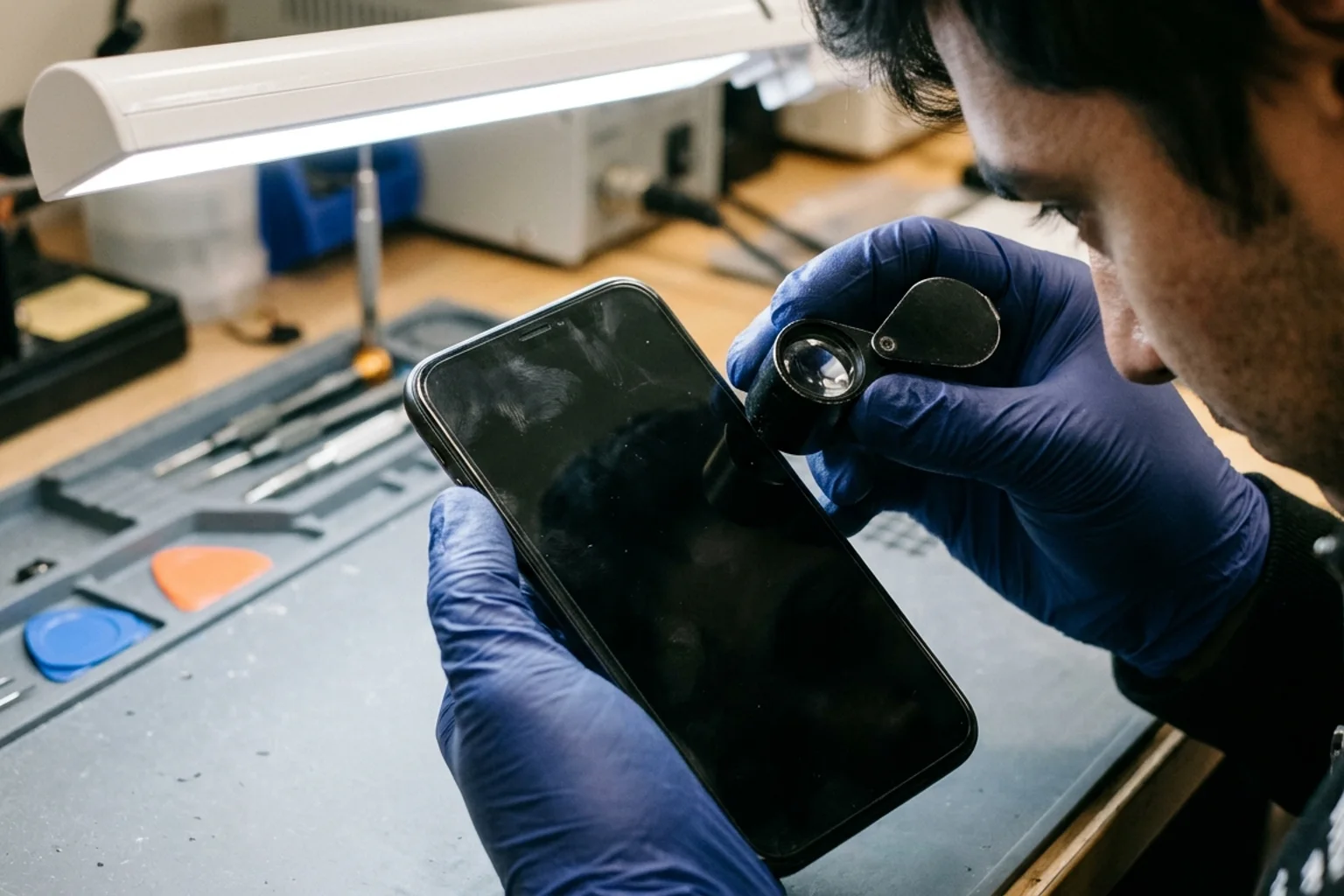
On intake worksheets, log phone grading screen defects in separate columns for powered-off front glass, powered-on display uniformity, and parts service history rather than collapsing them into Grade A, B, and C phones.
Functional Testing vs Visual Grading and Pixel Diagnostics
SERI’s R2 documentation defines facility certification and functional testing requirements:
- SERI’s R2v3 divides the R2 Standard into Core requirements that R2 certified facilities are held to and specialized Process requirements that only apply to facilities that perform those processes.
- In SERI’s framework overview, R2 is reorganized into two sections: Core Requirements that apply to all R2 Certified Facilities and Process Requirements that apply only to facilities that perform specific processes.
- In SERI’s R2 process requirements, Appendix C goes further than visually grading a device for physical defects or simply powering it on: R2 Facilities certified to Appendix C are testing all the key functions and must be certified to RIOS or ISO 9001.
- SERI’s overview of the revised framework describes strengthened data security controls and enhanced controls for test, repair, and reuse operations to ensure the quality and effectiveness of the operations.
Google Pixel Phone Help documents screen hardware fault indicators and touch diagnostics:
- According to Google Pixel Phone Help, if a Pixel phone screen flickers, shows a green tint, or horizontal or vertical lines, won’t turn on, or is cracked, it may have a hardware issue.
- On Pixel 9, Pixel 9 Pro & Pixel 9 Pro XL, operators can open the phone’s Settings app and run the Touch diagnostics test by tapping Display & touch > Touch diagnostics.
Apple Parts and Service History and Repair Assistant Verification
Pair visual screen inspection with our used iPhone wholesale grading and parts pairing check using Apple Support’s Parts and Service History and Repair Assistant rules:
- According to Apple Support, with iOS 15.2 and later, Parts and Service History shows Display on iPhone 11 models and iPhone 12 models and later, while iPhone XR, iPhone XS, iPhone XS Max, and iPhone SE (2nd and 3rd generation) show only Battery.
- With iOS versions earlier than iOS 15.2, you can check only if a replacement part is identified as an Unknown part, and if a component was serviced more than once, only the most recent service will appear.
- In iPhone Parts and Service History, an Unknown message can appear when the replacement part is not a genuine Apple part, is not functioning as expected, has not been verified and linked to the iPhone after the repair was completed, or has been modified or is otherwise unable to be verified.
- With nongenuine iPhone display parts, True Tone display might not work correctly, display color calibration might be incorrect (causing the display to appear too yellow or blue), the display might not be uniformly bright, and maximum brightness might be lower.
- With iPhone 15 and later with iOS 18 and later, Parts and Service History shows a Used message if the display was already used or installed in another iPhone. After a new Apple display has been installed, Parts and Service History shows Finish Repair next to Display until you finish the repair with Repair Assistant.
- Apple’s Repair Assistant requires Wi-Fi, more than 20 percent battery, and the latest version of iOS or iPadOS, and supports Display repairs on iPhone 12 and iPhone 13, iPhone 14 and iPhone 15, and iPhone 16 and later.
- If an iPhone replacement part is protected by Activation Lock and cannot be unlocked, the locked part is ineligible for service under the Apple Limited Warranty or an AppleCare plan, and you cannot trade in your device if you cannot unlock a part.
OLED Burn-In Test Screen Procedure, Shadow Tier Schedule & Lot Deduction Worksheet
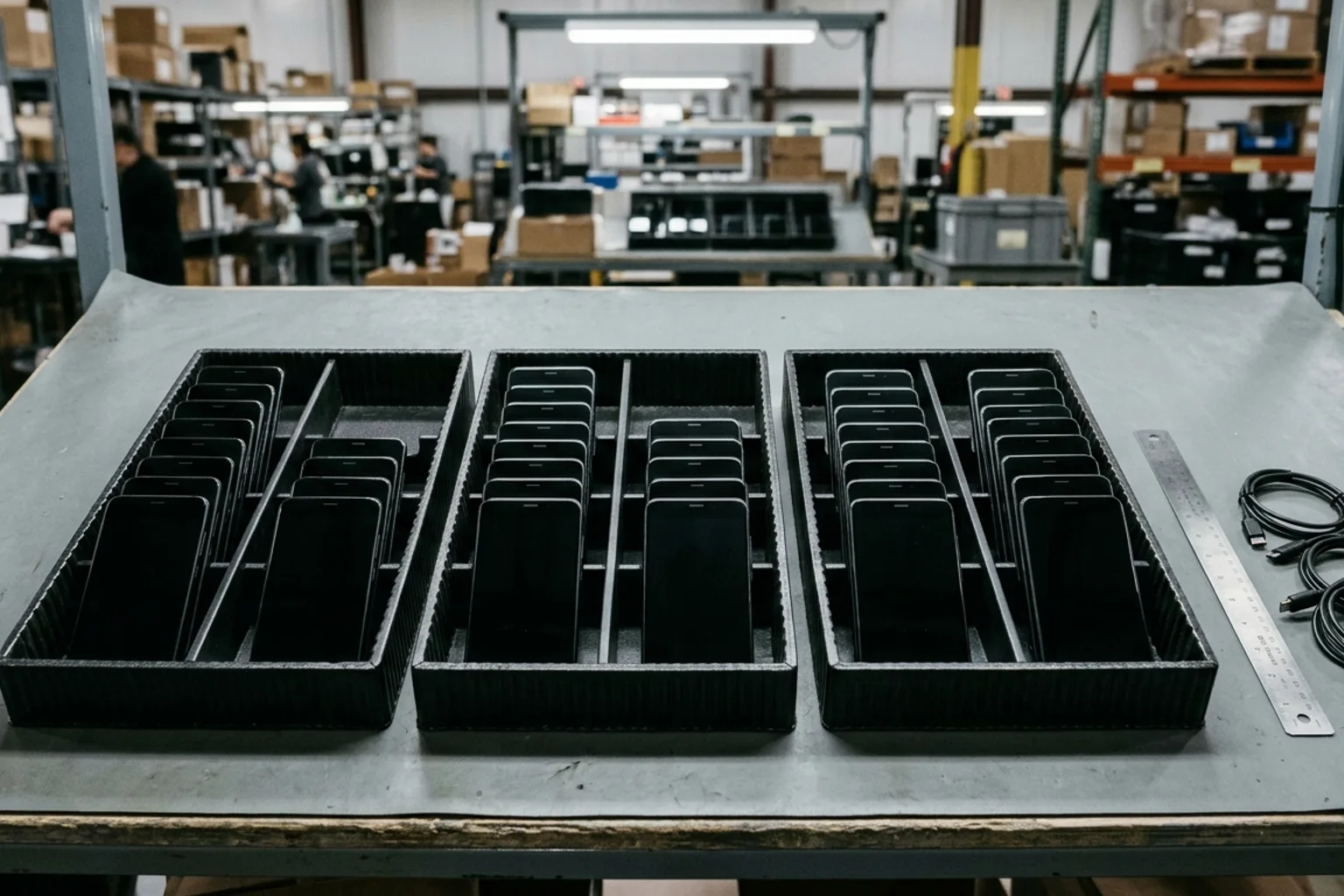
Define explicit display disposition tiers and per-unit price deductions in the purchase order before releasing payment, and record powered-off glass condition, test-screen observations, and service-history messages in separate intake columns.
Worked Example: Calculating Lot Shadow Deductions
To turn bench observations into an invoice adjustment, apply the contracted per-unit deductions to the count of affected units in the lot:
- For example, assume a 50-unit wholesale lot of used OLED phones is contracted at $300 per handset with a $40 per-unit deduction for mild edge shadow and a $110 per-unit deduction for heavy center burn-in.
- Suppose intake screen testing on that 50-unit lot identifies 5 units with mild edge shadow and 2 units with heavy center burn-in.
- In this example, the 5 mild-shadow units generate a $200 deduction and the 2 heavy burn-in units generate a $220 deduction, producing a $420 total shadow deduction and reducing the $15,000 gross lot price to a $14,580 net settlement.
Copyable Purchase Order & Intake Inspection Worksheet
Copy the template below into your purchase order addendum and receiving bench log, then record lot-level decisions in the Bulk Phone QC Checklist Tool and route disputed hardware faults through your DOA, warranty, and returns guide process:
WHOLESALE OLED DISPLAY & SHADOW GRADING ADDENDUM
Lot / PO Reference: ____________________   Supplier: ____________________
Inspector: _____________________________   Inspection Date: _____________

PRE-TEST BENCH SETUP (CHECK BEFORE SCORING ANY UNIT)
[ ] Front glass cleaned and inspected powered-off under direct bench lamp
[ ] Auto-Brightness checked (iPhone: Settings > Accessibility > Display & Text Size)
[ ] Night Shift turned off before viewing test screens
[ ] True Tone turned off before viewing test screens
[ ] Normal-use interval completed to verify whether any remnant is temporary image persistence

UNIT-LEVEL DISPLAY DISPOSITION LOG
IMEI / Serial | Model & Panel Type (OLED / LCD)
  -> Powered-Off Glass State: [ ] Clean  [ ] Minor Scratch  [ ] Deep Scratch / Crack
  -> Full-Screen Gray & White Check:
     [ ] Clean Display (uniform center and edges)
     [ ] Cleared Temporary Persistence (disappeared after a few minutes of normal use)
     [ ] Mild Edge Shadow (perimeter status / gesture area only)
     [ ] Heavy Center Burn-In (keyboard or center icon remnant)
     [ ] Hardware Fault (flicker, green tint, horizontal or vertical lines)
  -> Touch & Service History Check:
     [ ] Touch diagnostics passed
     [ ] iOS Parts & Service History checked (Display / Unknown / Used / Finish Repair)
     [ ] Replacement part free of Activation Lock
  -> Unit Action: [ ] Accept  [ ] Apply Shadow Deduction  [ ] Quarantine for Return
Sources
- Apple Support — About the Super Retina display and Super Retina XDR display on your iPhone
- Apple Support — iPhone 11 Pro Technical Specifications
- Apple Support — iPhone XS Max Technical Specifications
- Apple Support — iPhone SE Technical Specifications
- DisplayMate Technologies — iPhone X OLED Display Technology Shoot-Out
- RTINGS.com — Our Monitor Picture Quality Tests: Gray Uniformity
- RTINGS.com — Real-Life OLED Burn-In Test
- Apple Support — iPhone Parts and Service History
- Apple Support — About genuine iPhone displays
- Apple Support — Use Repair Assistant to finish an iPhone or iPad repair
- Google Pixel Phone Help — Fix touch & response issues on your Pixel screen
- Google Pixel Phone Help — Fix screen appearance issues on your Pixel phone
- SERI — R2v3 Process Requirements (Appendix C Test and Repair)
- SERI — Welcome to R2v3
Key takeaways
- Reset display color and brightness controls before viewing test screens so warm filters or ambient white-point changes do not distort the inspection.
- Log powered-off front-glass wear separately from powered-on panel shadow so cosmetic surface marks and display aging stay on distinct purchase-order lines.
- Verify whether a faint remnant disappears after a few minutes of normal use before classifying a handset with permanent burn-in.
- Check on-device parts and service history alongside uniformity test screens to separate aged panels from unverified or nongenuine replacement displays.
Sources and methodology
- Apple Support — About the Super Retina display and Super Retina XDR display on your iPhone — Apple Inc.
- Apple Support — iPhone 11 Pro, iPhone XS Max, and iPhone SE Technical Specifications — Apple Inc.
- DisplayMate Technologies — iPhone X OLED Display Technology Shoot-Out — DisplayMate Technologies
- RTINGS.com — Our Monitor Picture Quality Tests: Gray Uniformity — RTINGS.com
- RTINGS.com — Real-Life OLED Burn-In Test — RTINGS.com
- Apple Support — iPhone Parts and Service History and Genuine iPhone Displays — Apple Inc.
- Google Pixel Phone Help — Touch Diagnostics and Screen Appearance Issues — Google LLC
- SERI — R2v3 Process Requirements and Framework Overview — Sustainable Electronics Recycling International
Update history
- — First published. Official sources on this page were accessed on this date unless a later note says otherwise.
Factual corrections after publication are listed on the corrections page. Editorial responsibilities and review methods are described in the editorial policy.